Please note: The Team tab is for direct employees only. If you're adding subcontractors, use the Subcontractors tab instead.
Inviting a Team Member
Sign in to the Admin Portal at admin.site360.io
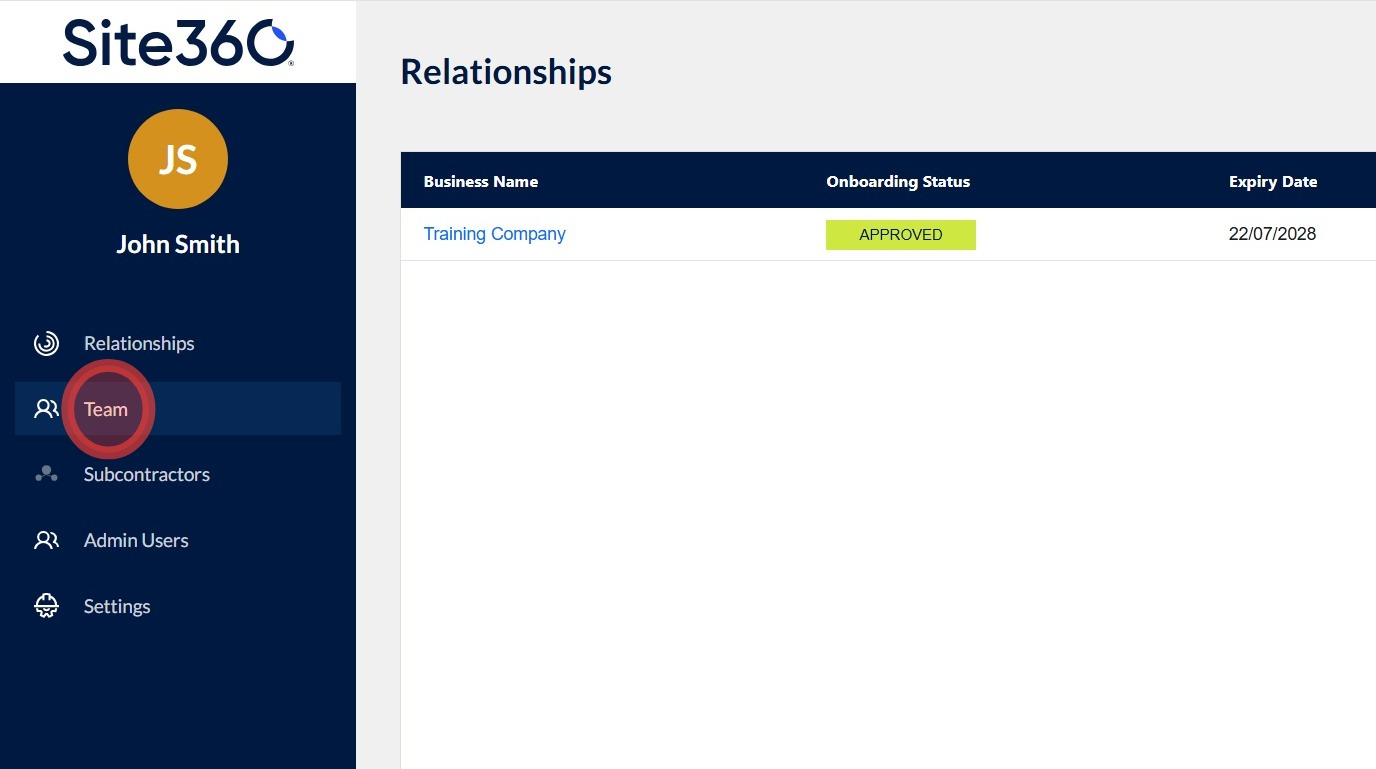
You'll land directly on the Relationships tab. Click 'Team' in the left navigation column.
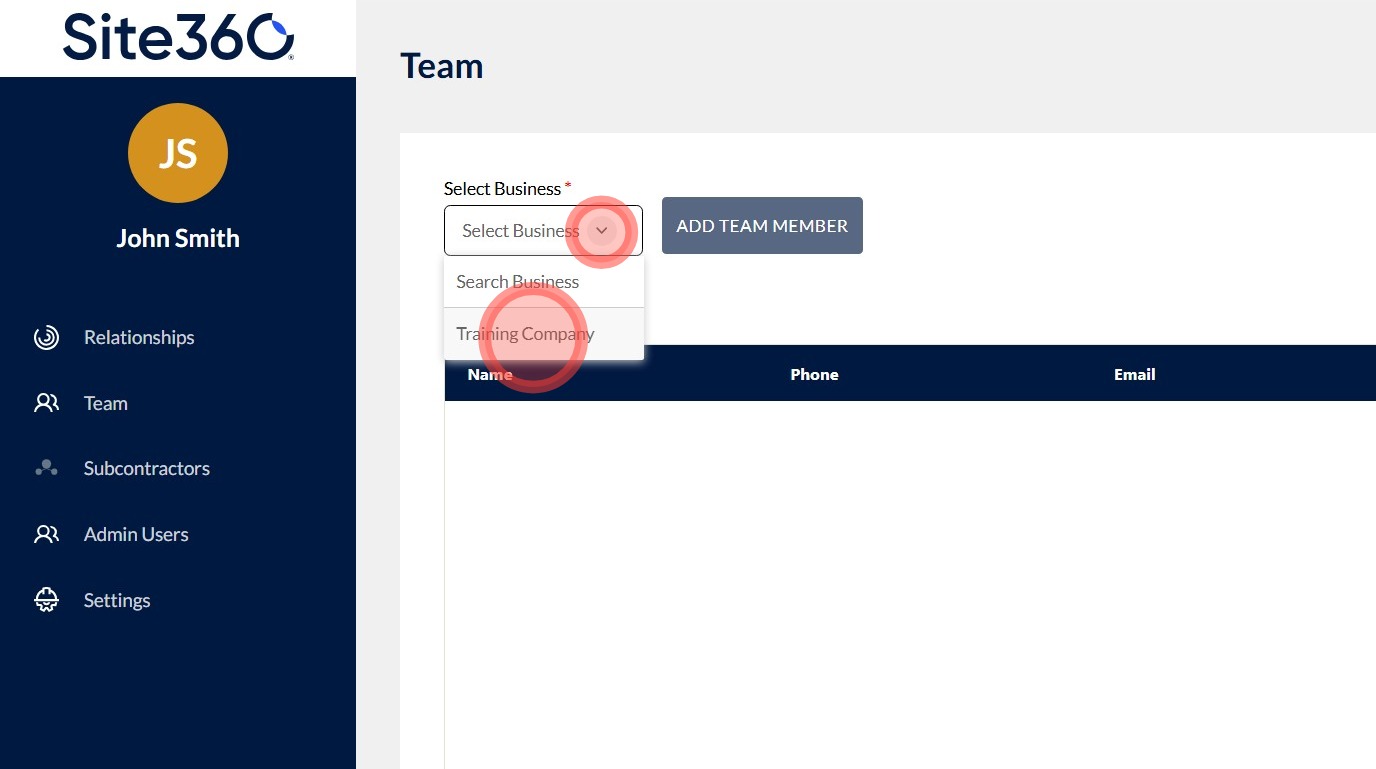
Select the drop-down arrow under 'Select Business' and choose the relevant company from the list.
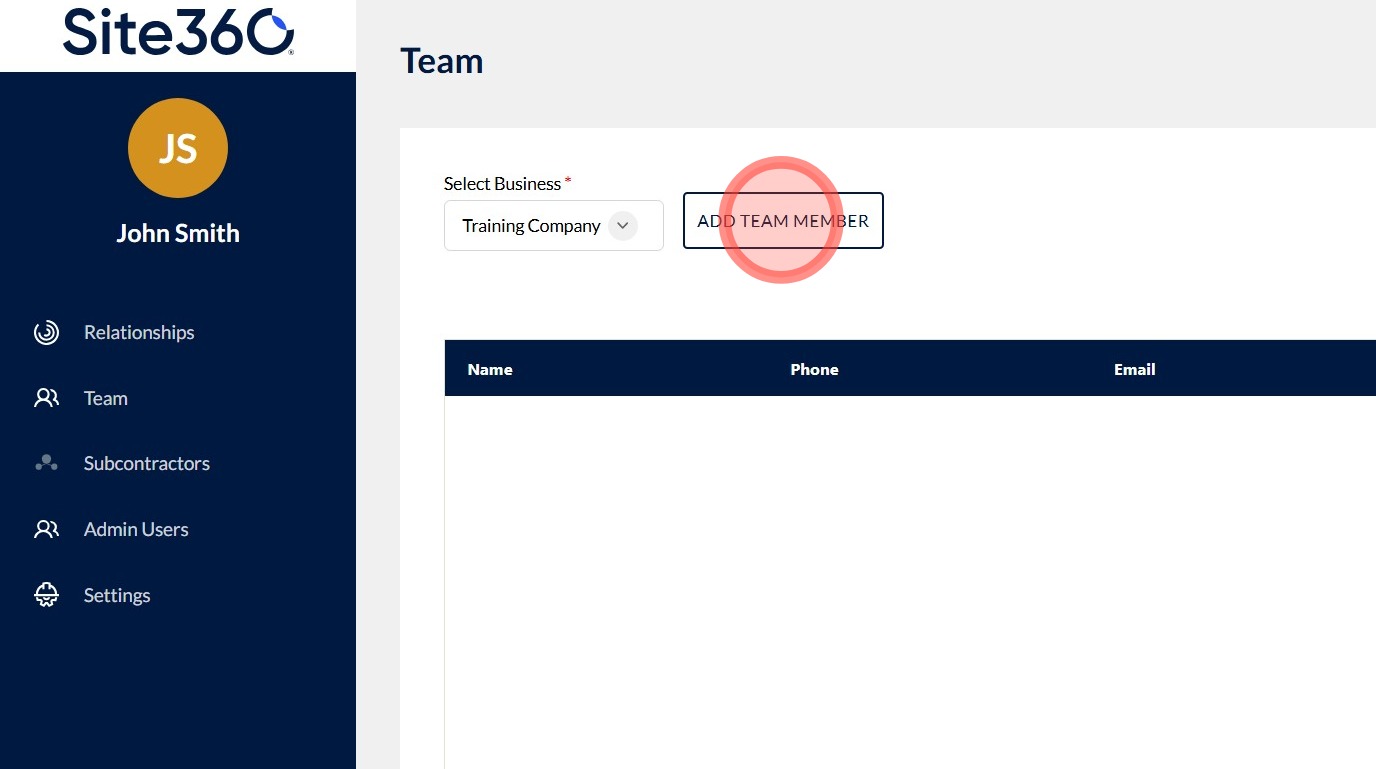
Click 'Add Team Member'.
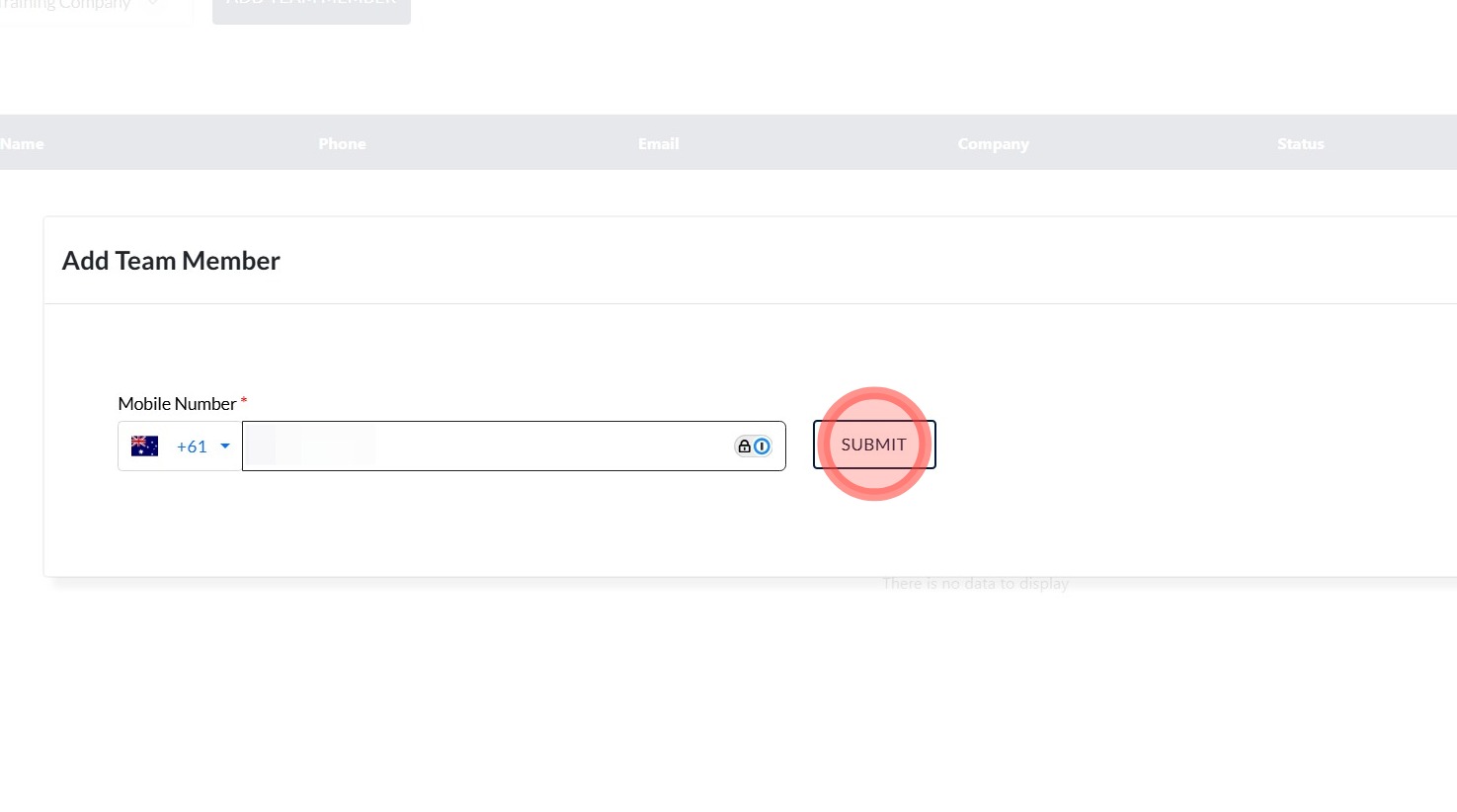
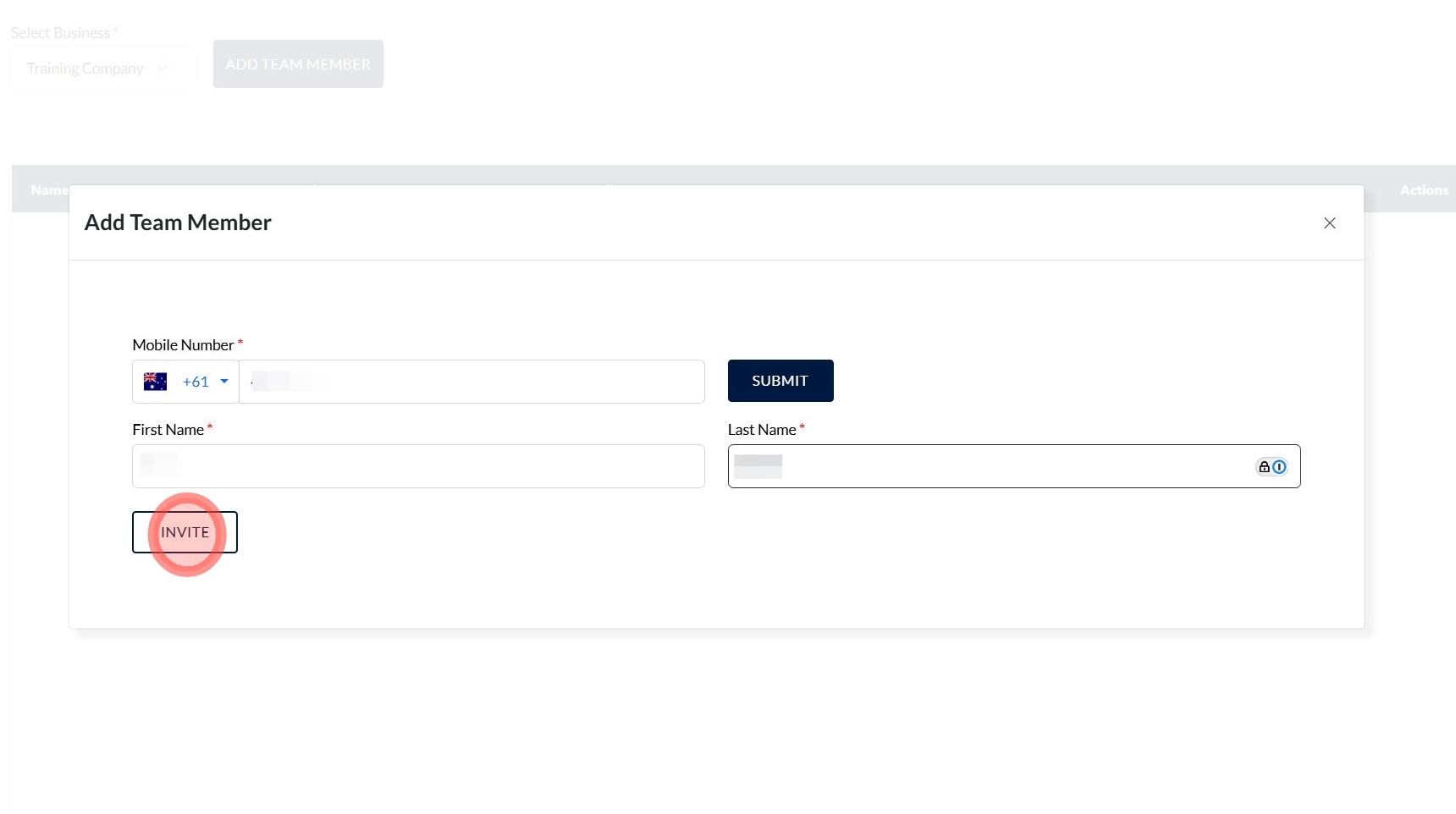
Enter the phone number into the 'Mobile Number' field, then press 'Submit'.
Enter the First and Last Name, then click 'Invite'.
If the team member already has an app profile, their name will pre-populate automatically.
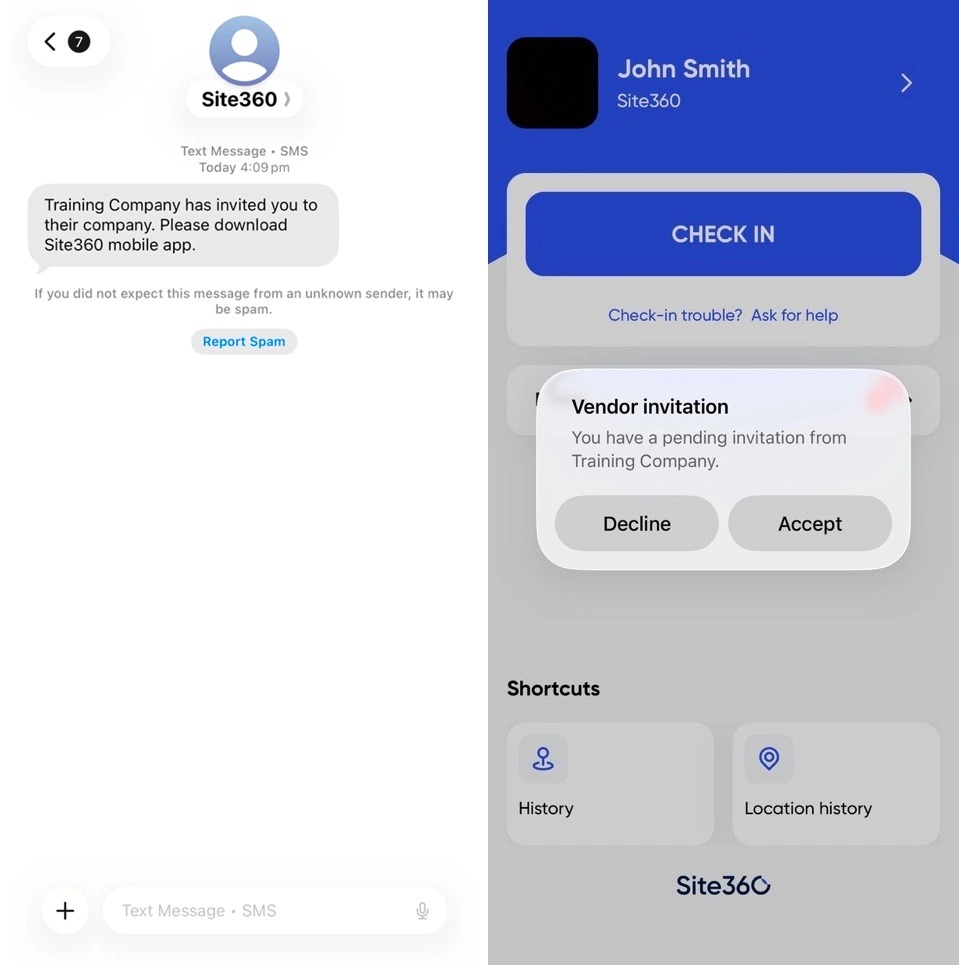
Once you've sent the invite, your team member will get a text message asking them to download the app. As soon as they download it and log in (or create an account), a pop-up will appear prompting them to accept or reject the invite.
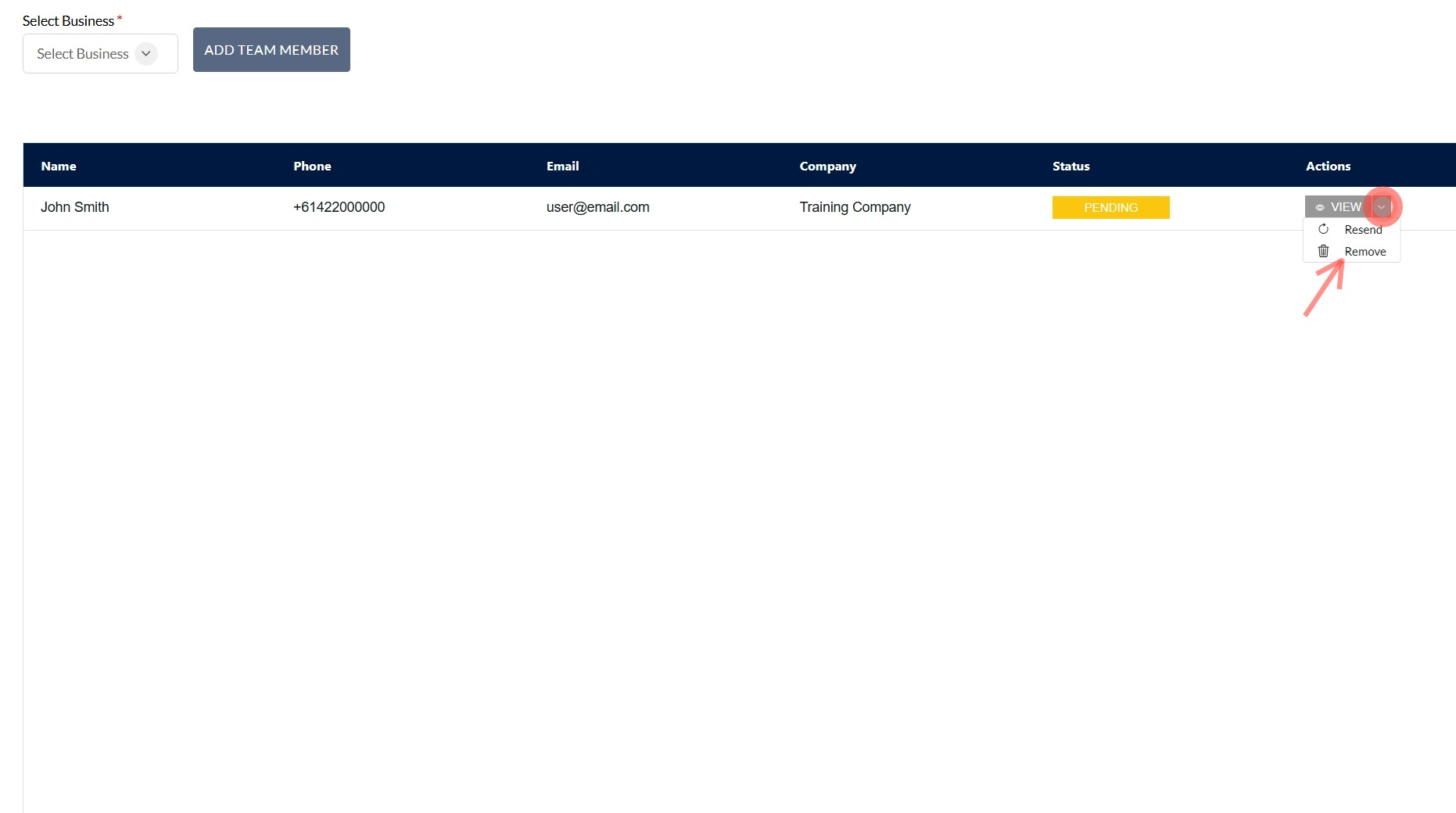
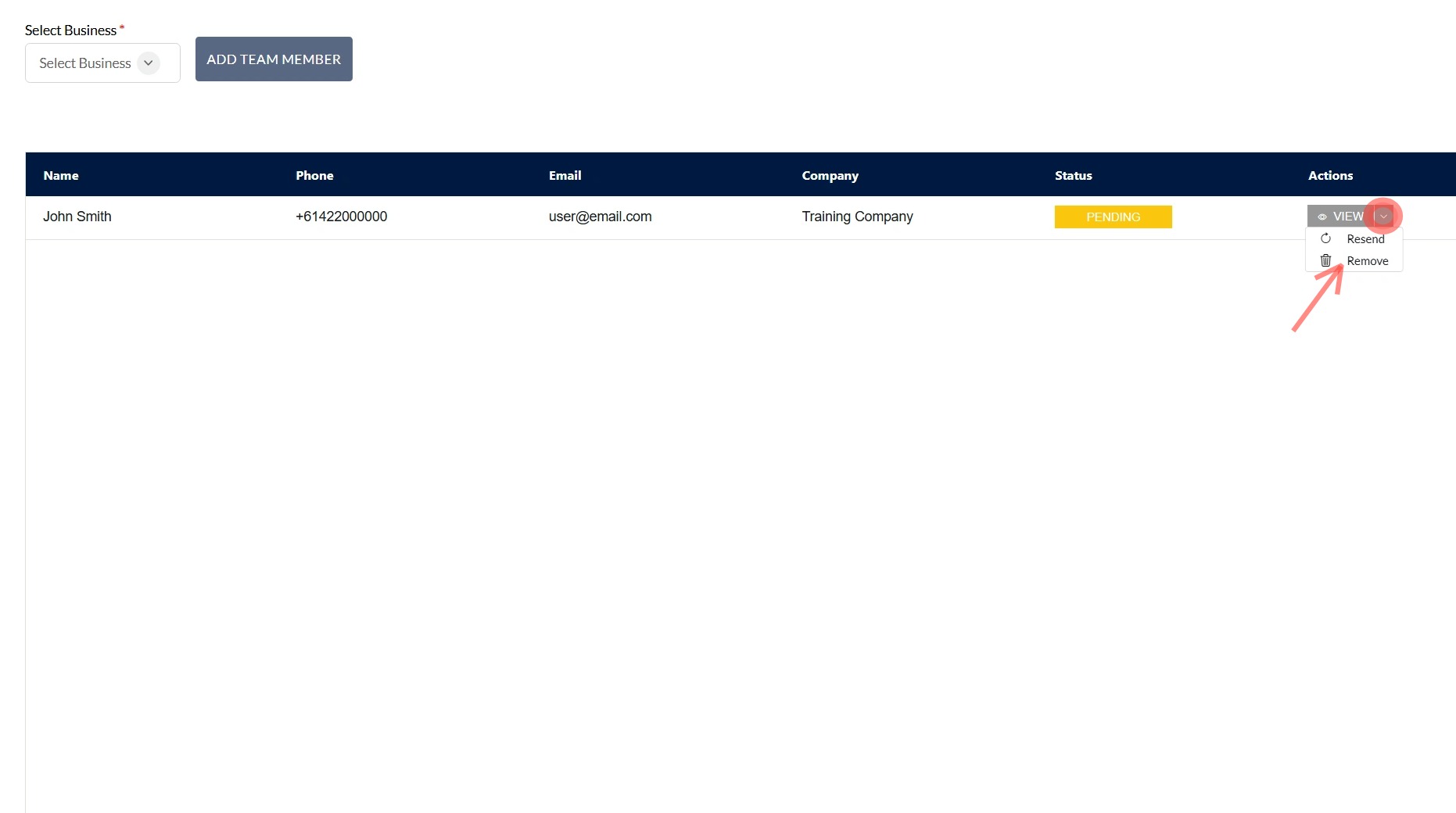
If your team member hasn't received your invitation message, you can resend the invite. Click the drop-down arrow next to 'View' to bring down a list of options, then click 'Resend' to resend the invitation.
Accepting a Team Member Request
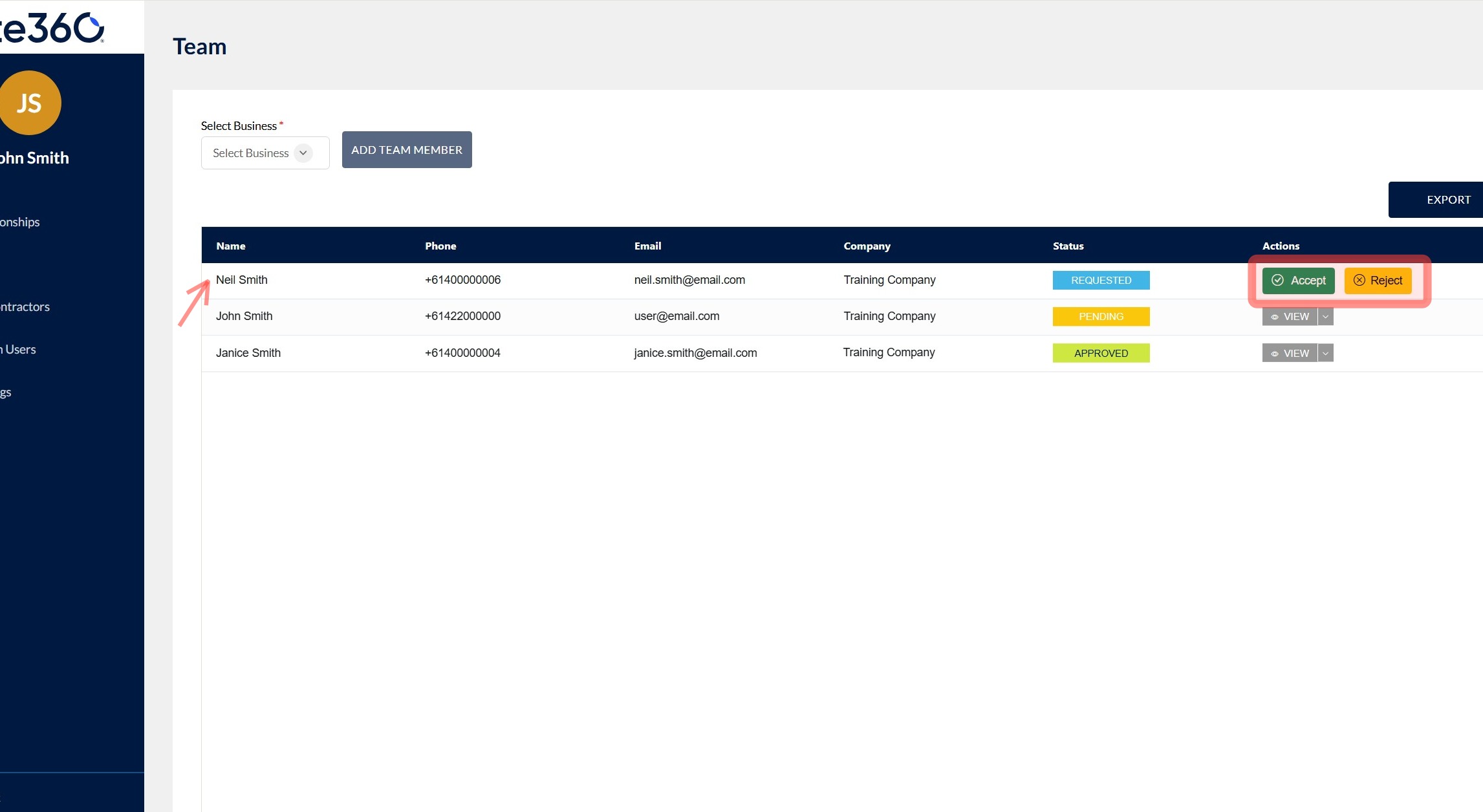
When a team member adds your company to their profile in the app, you'll receive an email notification. Follow Step 1 to open your Team tab and approve or reject the request.
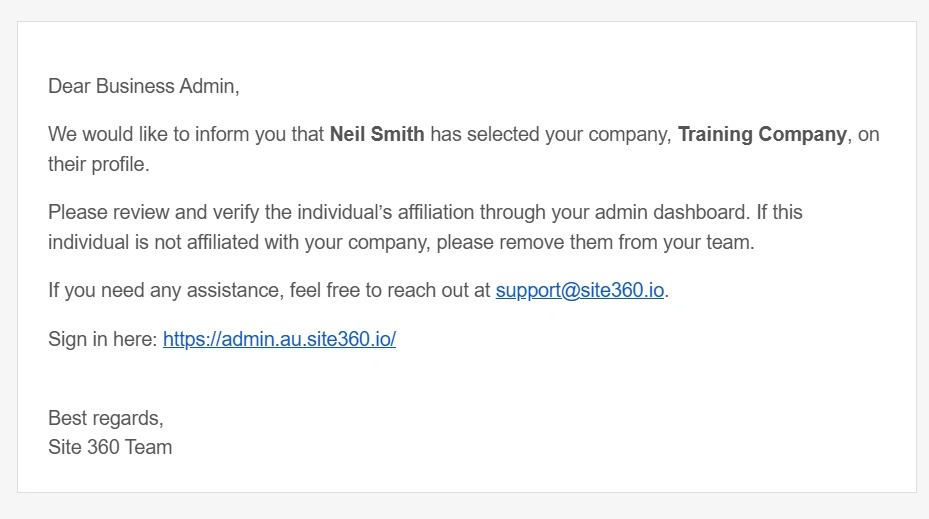
Reject if they are not a direct employee, they'll be removed from your team.
Removing a Team Member
Follow Step 1 to open your Team tab, then click the drop-down arrow next to 'View' to bring down a list of options. Click 'Remove' to remove the team member from your team.
Team Member Status
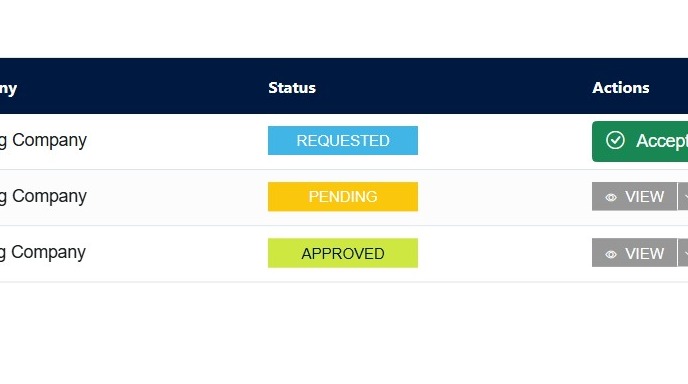
There are three team member statuses you'll see in the portal:
Still need a hand?
Reach out to the Site360 Support team and we'll get you sorted.
Was this article helpful?
That’s Great!
Thank you for your feedback
Sorry! We couldn't be helpful
Thank you for your feedback
Feedback sent
We appreciate your effort and will try to fix the article