Navigating to the Subcontractors Tab
Sign into the Admin Portal: admin.site360.io
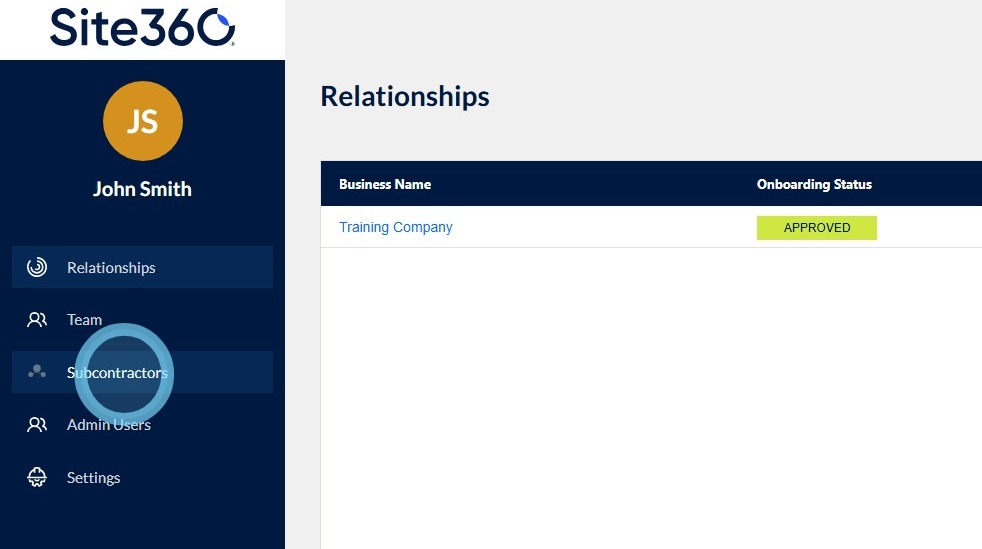
When you sign in it will take you directly to the Relationships tab. Click Subcontractors in the left navigation column.
Inviting a Subcontractor
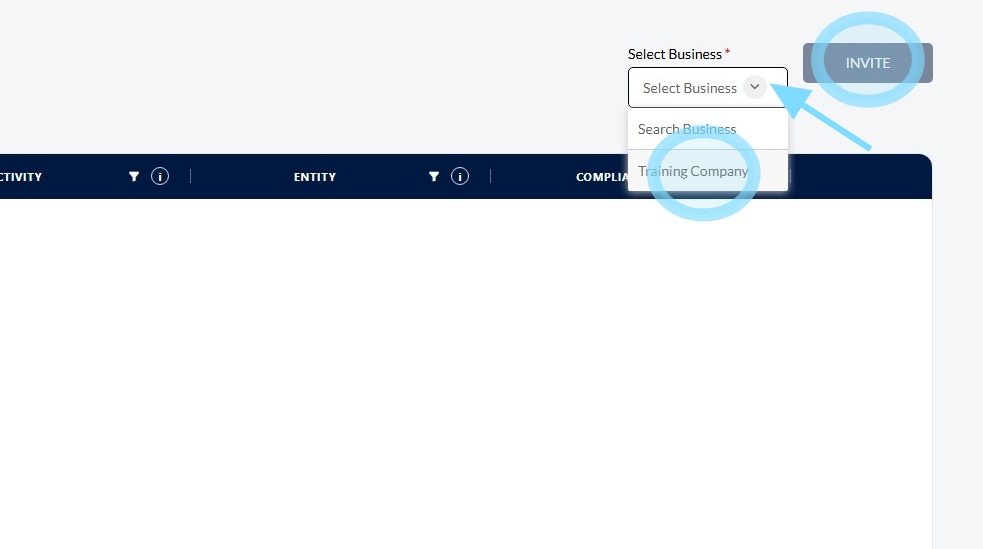
Click on the drop-down arrow in the top right corner under Select Business, then click the relevant business name and Invite.
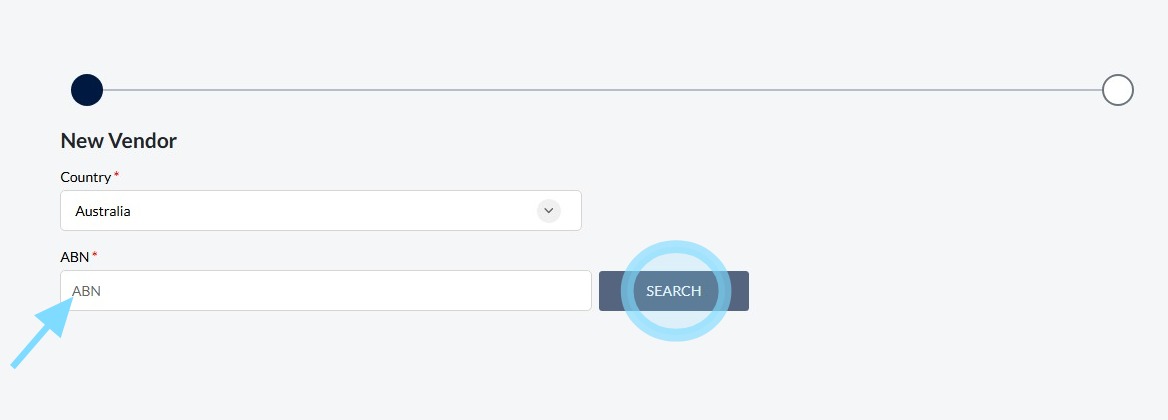
Enter the subcontractor's ABN number and then click Search.
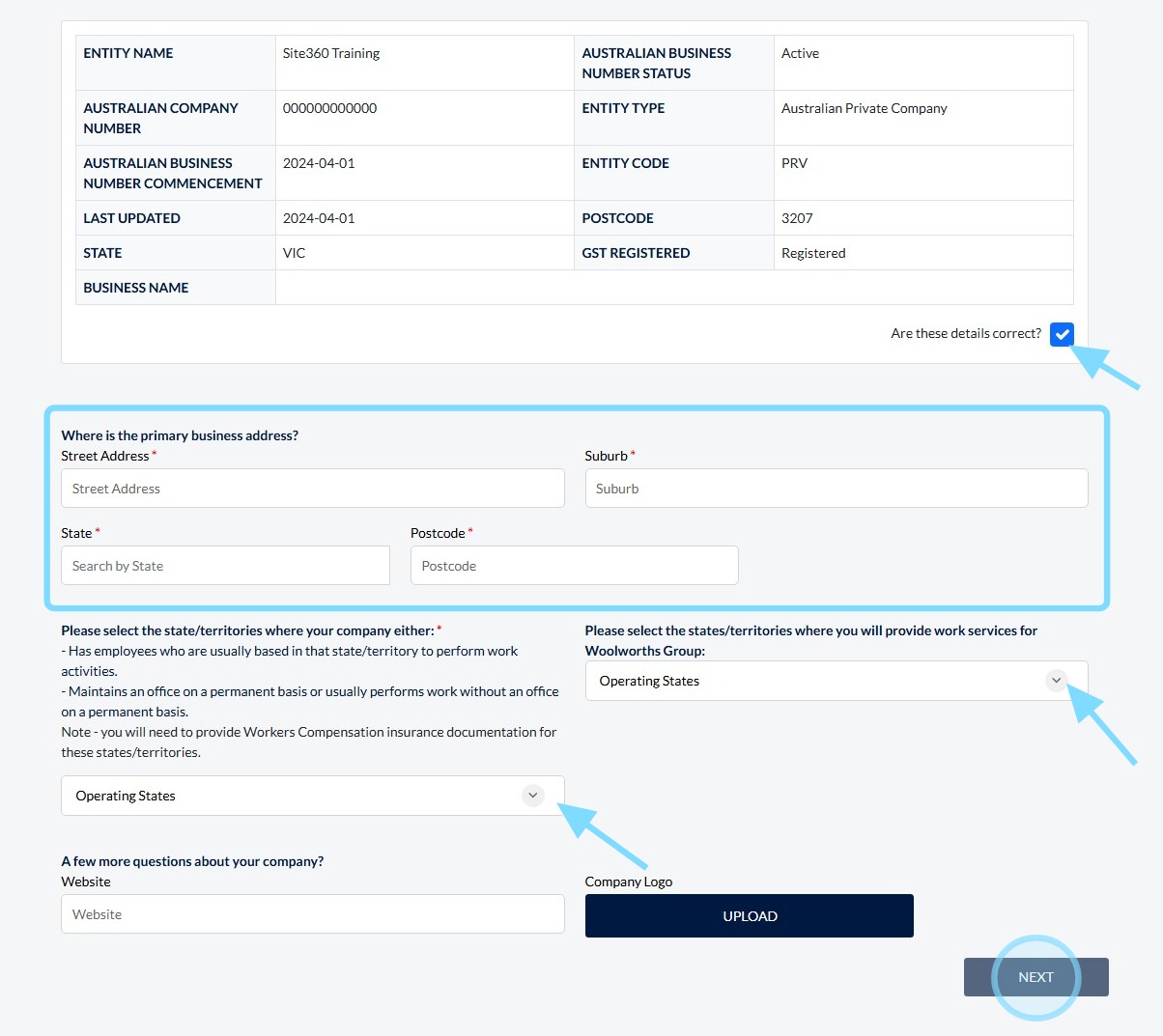
Confirm the business details by toggling the switch to Yes. Enter the business address details and select the operating states by clicking the drop-down arrow and selecting the state, then click Next.
Enter the following details for your subcontractor's primary contact:
- First Name
- Last Name
- Land/Mobile Number
Then click Next.
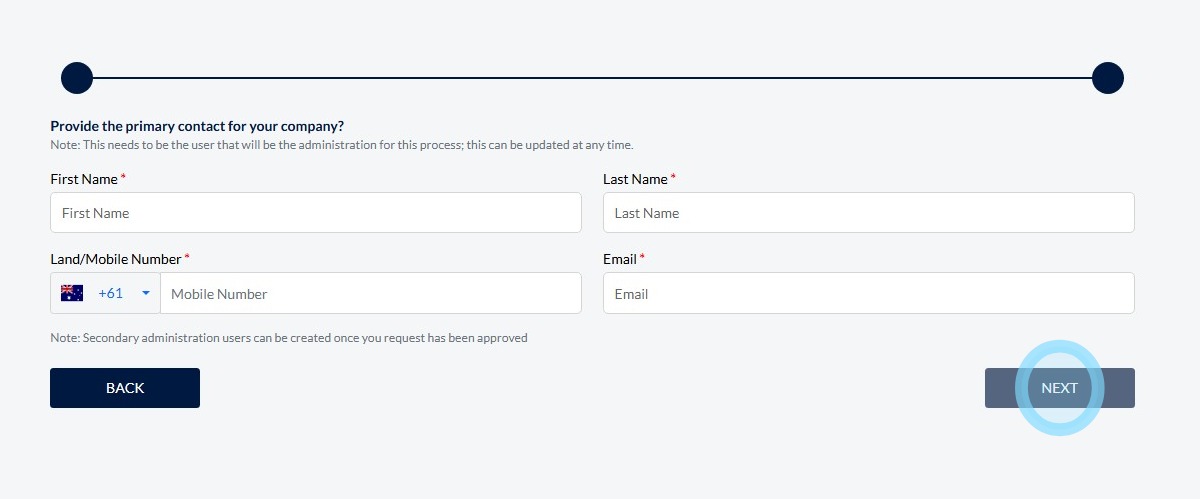
Your subcontractor will now be sent an invitation.
Entity statuses
- Invited You have sent them an invite, however they have not yet accepted it.
- Pending They have accepted your invitation, however they have not completed the Risk Profile.
- Approved They have accepted the invitation and completed the Risk Profile.
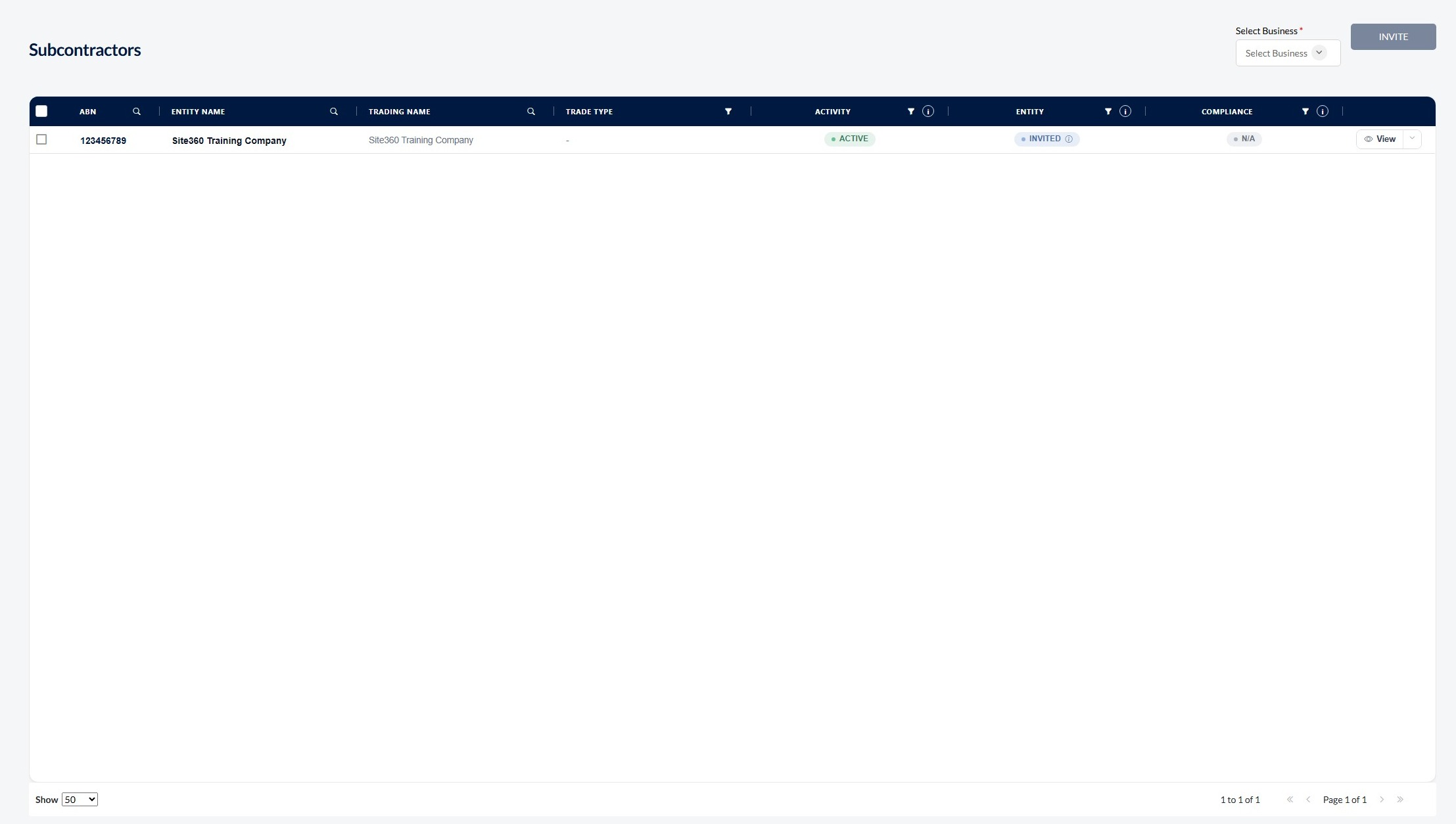
Please note: subcontractors do NOT need to complete the entire onboarding process. They will only need to complete the Risk Profile and manage their team.
Viewing Subcontractor Details
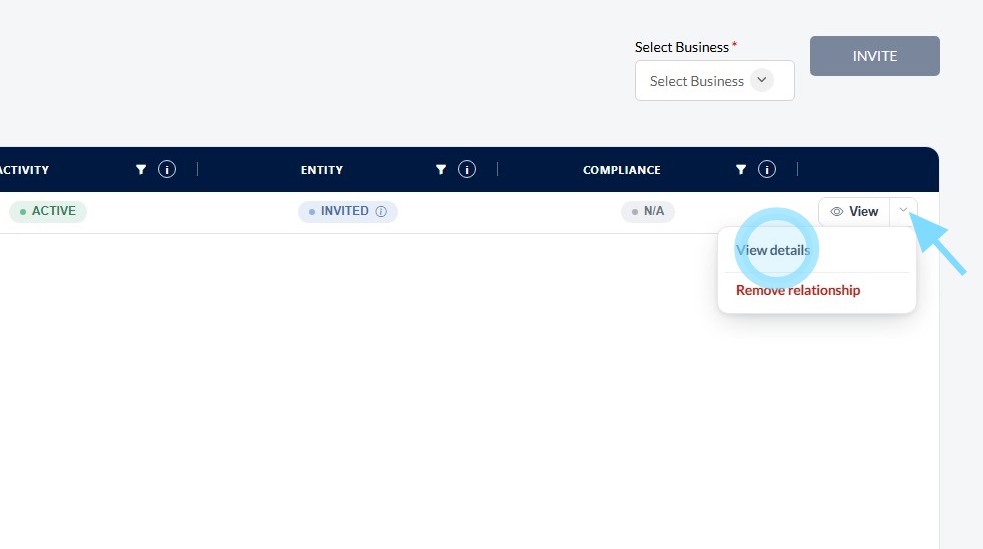
Click on the drop-down arrow next to View and select View Details.
Removing a Subcontractor
Click on the drop-down arrow and click on Remove Relationship.
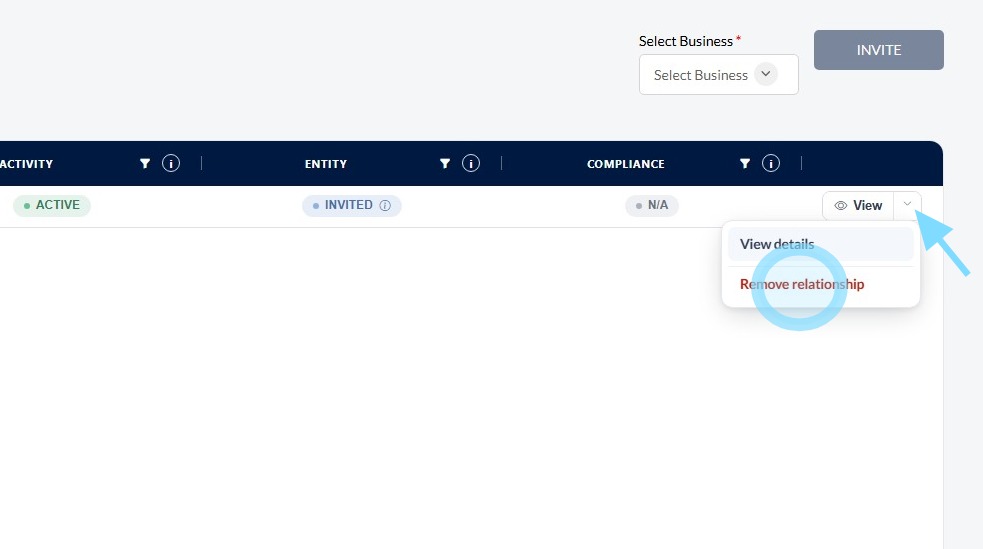
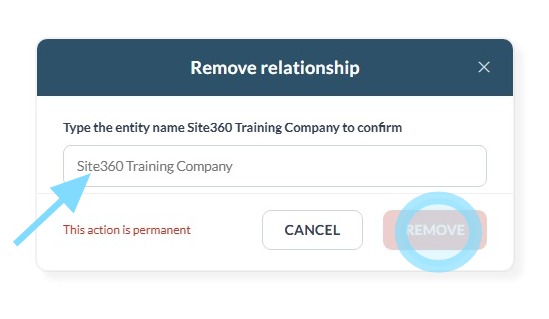
Enter the company name in the box and then click Remove.
Still need a hand?
Reach out to the Site360 Support team and we'll get you sorted.
Was this article helpful?
That’s Great!
Thank you for your feedback
Sorry! We couldn't be helpful
Thank you for your feedback
Feedback sent
We appreciate your effort and will try to fix the article